Production Console
Overview
The Production Console is an owner-only feature for managing production data directly from the dashboard. You can create, read, update, and delete data right in the browser without any external API tools.
Sandbox test vs. Production Console
| Sandbox Test | Production Console | |
|---|---|---|
| Environment | Sandbox (testing) | Production (live) |
| Access | Owner + Collaborators | Owner only |
| API Key | Manual input (tm_test_) |
Auto-configured (default production key) |
| Data impact | Test data (deleted after 30 days) | Live production data |
| Collaborator webhook | Testable via headers | Not triggered |
| Owner webhook | Triggered if configured | Triggered if configured |
| Purpose | Pre-deployment call testing | Direct production data management |
When is this useful?
- When you want to pre-populate product listings or announcements for partners to retrieve via GET
- When you need to directly fix or delete incorrectly entered production records
- When you want to quickly create (POST) simple data without external tools
How to get here
- Endpoint Detail Production tab > right sidebar >
Open Consolebutton - Only shown for endpoints with completed production deployment, and only to the owner
Before you start
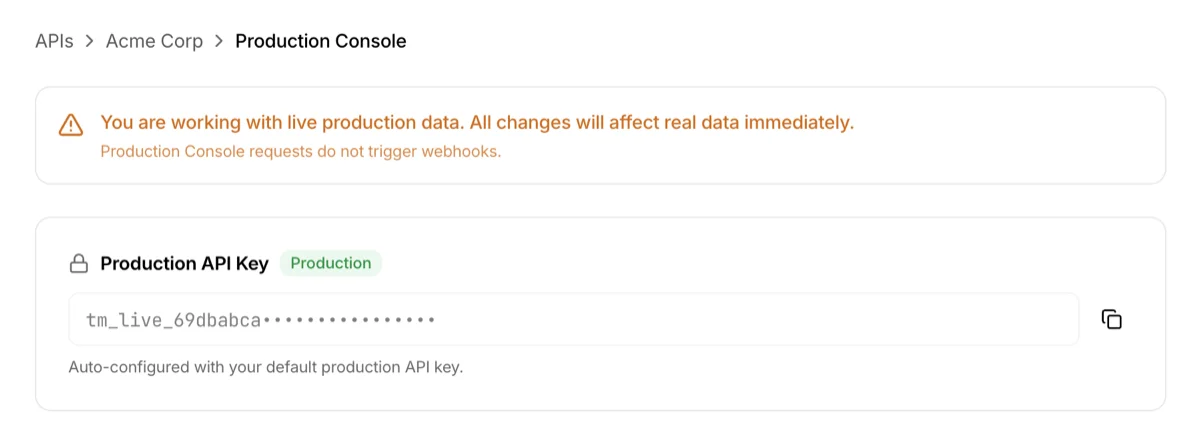
Warning banner
The Production Console handles live production data, so a warning that all changes take effect immediately is always shown at the top. Additionally, requests from the Production Console do not trigger collaborator webhooks. If the owner webhook is configured, it fires normally.
Production API Key
The owner's default production API key is automatically configured. No need to enter or authenticate a key separately.
Console
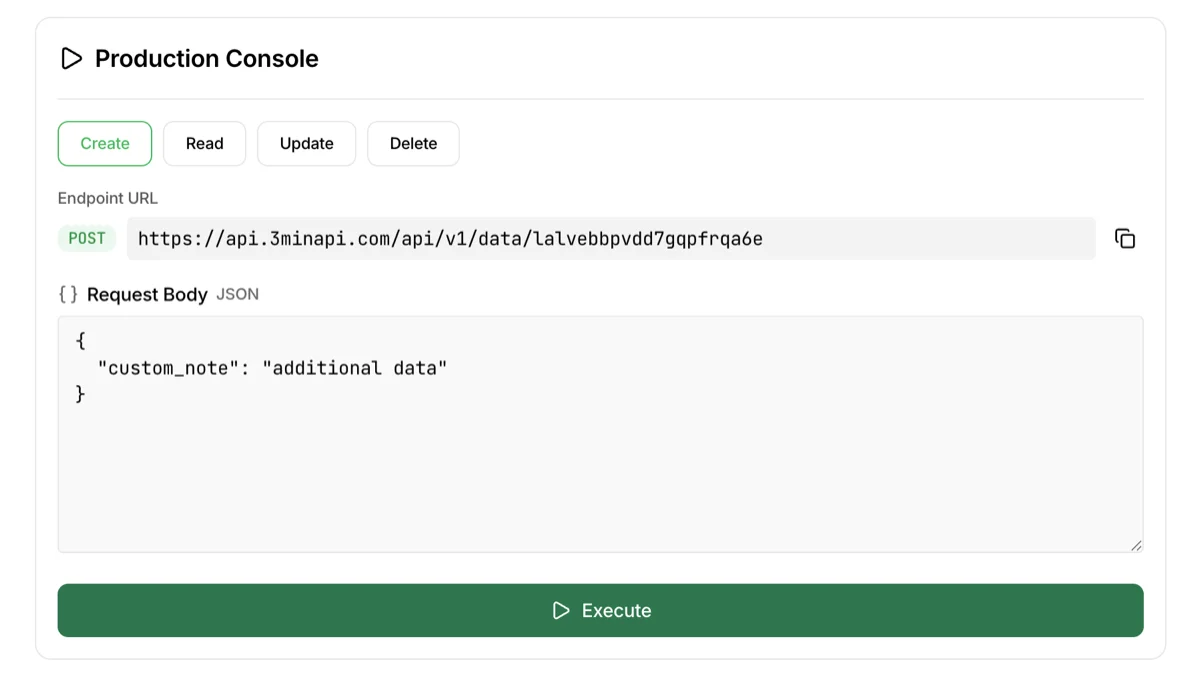
Same structure as Sandbox Test's Try it out, except it executes in the production environment.
Method selection
POST / GET / PUT / DELETE tabs at the top. Select the operation to perform.
- POST (Create): Enter JSON in the request body and execute. A new record is created
- GET (Read): Enter a record ID and execute. View the record's data
- PUT (Update): Enter a record ID + modified JSON body. This is a full replacement
- DELETE: Enter a record ID and execute. The record is permanently deleted
Execution area
- Endpoint URL: The actual production API path is shown. Path changes automatically based on the method
- Record ID: Required for GET/PUT/DELETE. Enter an ID starting with
rec_ - Request Body: JSON to send for POST/PUT
Executebutton: Takes effect on production immediately- Response: Results shown with status code and response time
Caution: All operations in the Production Console take effect on live data immediately. DELETE cannot be undone — execute carefully.
Troubleshooting
- Open Console button is not visible: Only shown after production deployment is complete. Check deployment status on the Endpoint Detail page
- I'm a collaborator and can't access the console: Production Console is owner-only. Collaborators must call using their assigned production API key externally
- PUT only updated some fields and the rest disappeared: PUT uses full replacement. Include all fields you want to keep, not just the ones you're changing
- How do I find the record ID for editing/deleting?: Go to the Logs page in the top menu, select the endpoint, and browse the call history. Click any entry to see the record ID (starts with
rec_)