MCP Integration (CLI / IDE)
Overview
AI Integration lets you connect AI tools like Claude Code and Cursor to 3Min API, so you can run your endpoints with the same kind of casual chat you already use. Behind the scenes it speaks MCP (Model Context Protocol), an open standard. Once the AI is connected to the 3Min API server, it picks the right tool from the ones we expose and answers your question.
The benefit is concrete. No code is needed to create a new endpoint, search yesterday's call logs, invite a collaborator, or check this month's usage. Skip the dashboard clicks — "Summarize the 5 failed calls from last week" is enough.
3Min API supports two authentication styles. ChatGPT and Claude use OAuth (sign in with your 3Min API account), so there's no API key to manage. CLI/IDE tools like Claude Code or Cursor use API keys that you store locally. This page walks you through connecting local tools with the API key flow.
Where to start
- Dashboard → Settings → AI Integration → CLI / IDE tab
What you can do
The 3Min API MCP server exposes the tools below. The AI looks at your request and picks the right one. Every action is scoped to your own account — other users' resources are never accessible.
Read tools
| Tool | Description | Scope |
|---|---|---|
help |
Returns the 3Min API service guide by topic | Public |
endpoint_list |
List endpoints | Your own |
endpoint_get |
View one endpoint's details | Your own |
logs (lookup / search) |
Single-record lookup, full-text search | Your own |
stats |
Monthly / daily API usage statistics | Your own |
subscription |
Current plan, usage, and billing info | Your account |
collaboration_key_list |
List collaboration keys | Your own |
collaborator_invite_list |
List collaborator invitations | Your own |
record_get |
View one stored record | Your own |
record_list |
List recent records (newest first) | Your own |
record_search |
Search records by text (last 30 days) | Your own |
record_poll |
Fetch records that arrived since a point (oldest first) | Your own |
Create / Update / Deploy tools
| Tool | Description | Scope |
|---|---|---|
endpoint_create |
Create a new endpoint | Your account |
endpoint_update |
Update field definitions and webhooks | Your own |
endpoint_deploy |
Deploy sandbox config to production | Your own |
collaboration_key_create |
Create a new collaboration key | Your own |
collaboration_key_set_permissions |
Update CRUD permissions for a collaboration key | Your own |
collaborator_invite |
Send a collaborator invitation email | Your own |
Execution tools
| Tool | Description | Scope |
|---|---|---|
record_create |
Store a new record in your endpoint (via the gateway) | Your own |
record_update |
Replace a stored record as a whole | Your own |
record_delete |
Delete a stored record | Your own |
record_deleteremoves one stored record and cannot be undone. It does not delete the endpoint itself — that is dashboard-only.
Task tools
| Tool | Description | Scope |
|---|---|---|
worker_list |
Names, descriptions and kind (public · local) of your workers (no URLs or secrets) |
Your own |
task_create |
Creates a task from a worker name and input (JSON object, up to 100 KB). repeat runs it on an interval (local workers only) |
Your own |
task_list |
Recent tasks (without result bodies) | Your own |
task_get |
One task's status, message, delivery, and result or error |
Your own |
task_cancel |
Cancels running tasks (up to 100) | Your own |
task_result_describe |
Structure of a result saved on your PC — paths, types and ranges | Your own |
task_result_query |
Read-only SQL over results saved on your PC; only the answer comes back | Your own |
task_result_read |
A raw slice of a result saved on your PC | Your own |
A worker must exist first: a public worker is registered in the dashboard (Tasks), a local worker is a file on your PC run by the CLI (Local workers (CLI)).
Safety: actions intentionally not exposed to AI
The actions below are deliberately excluded from MCP. We don't want an AI mistake or accidental call to wipe data or trigger billing surprises. When you need to do these, sign in to https://3minapi.com directly.
| Excluded action | Where to perform it |
|---|---|
| Delete endpoint | Dashboard → APIs → Endpoint detail |
| Delete / deactivate collaboration key, regenerate API key | Dashboard → APIs → Endpoint detail → Collaboration keys |
| Revoke collaborator invitation | Dashboard → APIs → Endpoint detail → Collaborators |
| Change / cancel plan | Dashboard → Settings → Subscription |
| Regenerate / delete MCP API key | Dashboard → Settings → AI Integration → CLI / IDE |
| Delete account | Dashboard → Settings → Profile |
| Register / edit / delete a public task worker, view or rotate its secrets | Dashboard → Tasks → Workers |
| Add a host for the local CLI, rotate its token, delete it | Dashboard → Tasks → Local (Local workers (CLI)) |
How to connect
CLI/IDE tools use the API key flow. Drop the 3Min API MCP key into your local config file once, and that tool authenticates as you from then on. The full key is shown only once on issue, so copy it immediately.
Step 1 — Open the CLI / IDE tab
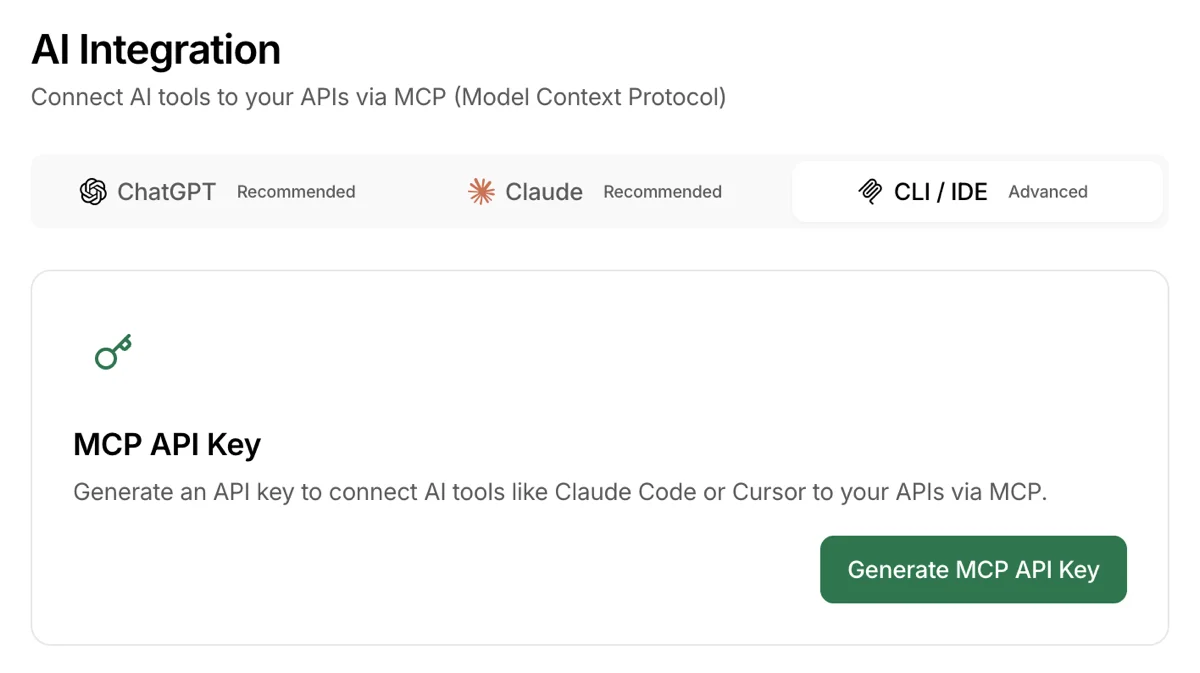
From the dashboard, open the account menu (top-right) → Settings → AI Integration → CLI / IDE tab.
Step 2 — Generate an MCP API key
Click Generate MCP API Key. A key prefixed with tm_mcp_ is shown once.
You can't see the full key again after leaving this screen. Copy it right away with the copy button and store it somewhere safe. If you lose it, you'll need to generate a new one — and the old key is invalidated immediately.
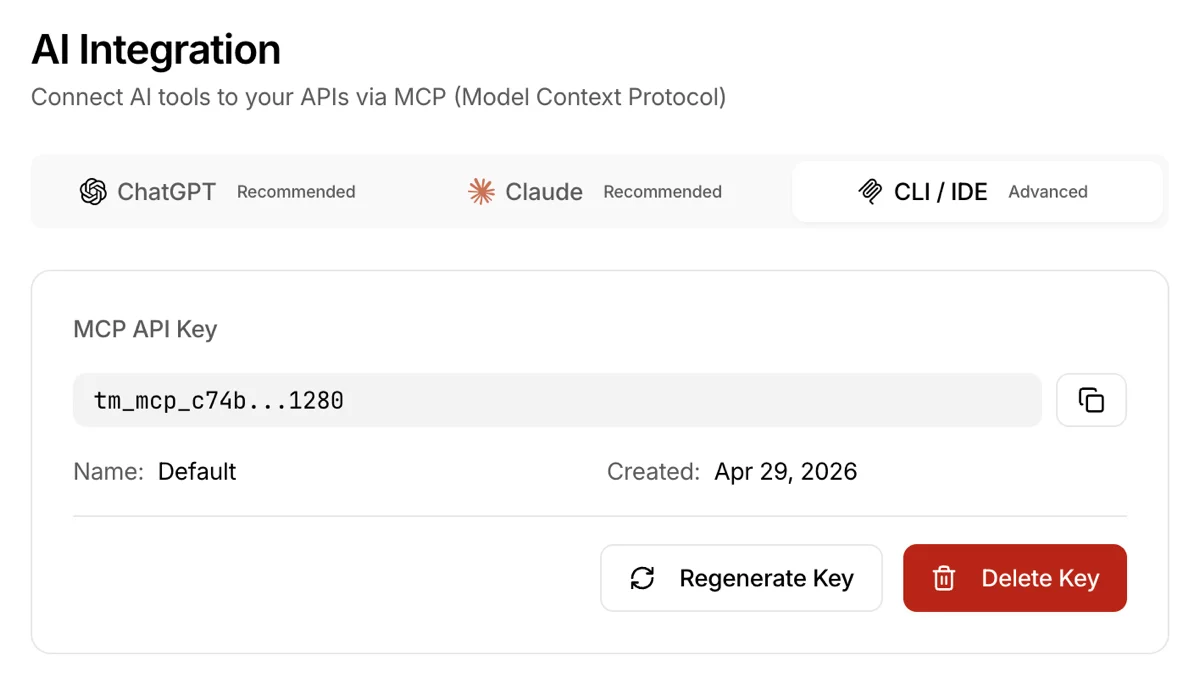
Step 3 — Copy the config snippet
The Configuration card at the bottom of the page shows JSON pre-filled with your key. Copy it as-is.
{
	"mcpServers": {
		"3minapi": {
			"type": "http",
			"url": "https://3minapi.com/api/mcp",
			"headers": { "x-api-key": "tm_mcp_..." }
		}
	}
}
Step 4 — Paste into your tool's MCP config
Add the snippet to the MCP config file of the tool you're using. The exact location varies — check each tool's documentation:
- Claude Code: project-root
.mcp.jsonor user settings - Cursor: Settings → MCP Servers
- Other MCP-compatible tools accept the same JSON shape
Save the config and restart the tool — it should pick up the 3minapi tools.
Step 5 — Manage the key
You can regenerate or delete the key from the same screen later:
Regenerate Key— issues a new key and invalidates the old one immediately. Use this if you've lost or suspect leakage of the key. After regenerating, swap in the new value in every tool's config file.Delete Key— removes the key entirely. After deletion, no tool can access your account on your behalf.
Example prompts
These plain-language prompts work well:
- "Show me my API endpoint list."
- "Create an endpoint for customer inquiries with name, email, and message fields."
- "Summarize the 5 failed calls from yesterday."
- "How much have I used this month, through yesterday?"
- "Invite chris@example.com as a collaborator on the user-signup endpoint."
For requests that create, update, or deploy something, the AI confirms with you before going through. Read the response carefully so unintended changes don't slip in.
Common pitfalls
I closed the screen without copying the full API key
For security, the full key only appears once on issue. That you can't see it again is by design. Click
Regenerate Keyfrom the CLI / IDE tab to generate a new one (the old key is invalidated immediately, so update the config in every tool you use).I added the key but the tool doesn't recognize it
Fully restart the tool — saving the config alone may not reconnect the MCP server. A typo in the JSON can also be silently ignored, so double-check the format.
What if someone else's data gets mixed in?
It can't. The MCP API key is bound to the account that issued it, so every tool only touches your own resources — other users' endpoints and logs are never visible.
The AI deleted my endpoint!
It can't. Destructive actions are excluded from MCP, so no matter how the AI tries, your data stays put. To actually delete something, sign in to https://3minapi.com.
How is this different from
tm_test_*andtm_live_*?They're entirely different keys.
tm_test_*(sandbox) andtm_live_*(production) are collaboration keys used by external callers to invoke your API endpoints.tm_mcp_*is used by AI tools to access your 3Min API account. Mixing them up causes authentication failures.