Onboarding
Overview
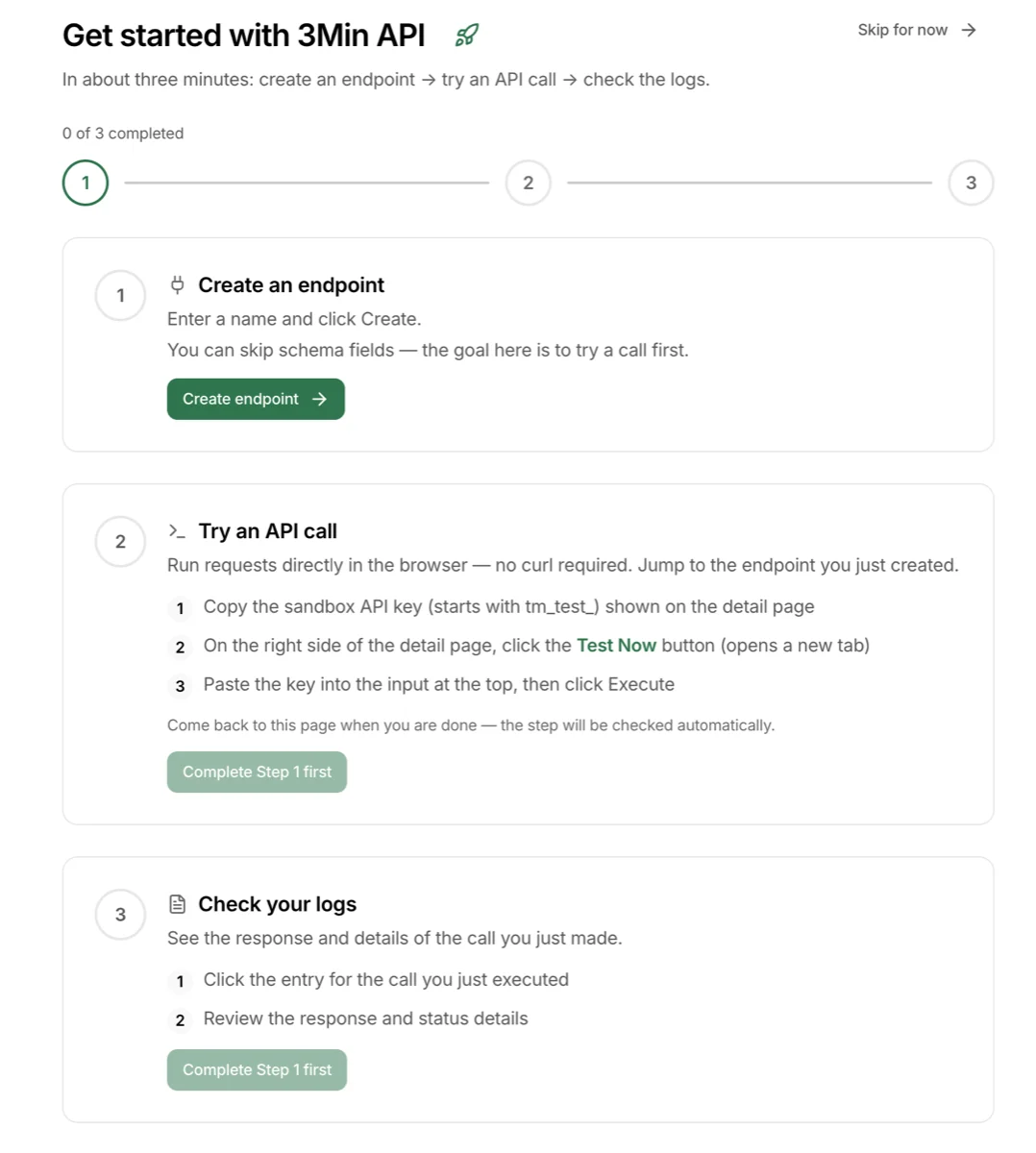
When you first sign up for 3Min API, an onboarding checklist appears automatically. This guide is designed so you can experience the full service flow — from creating an endpoint to confirming your first API call — in about 3 minutes.
You can skip the onboarding at any time. If you already have API integration experience, feel free to go straight to the dashboard and create an endpoint. But if it's your first time, try following the 3 steps — you'll get a clear picture of how the entire service works.
How to get here
- Automatically shown right after your first sign-up and login
- If you leave midway, you can always return via the progress banner at the top of the dashboard
- Even after completion, you can revisit the page to review the step-by-step guide
3-step checklist
A progress stepper is displayed at the top of the screen. Each step is marked with a circle badge — a checkmark when completed, a number when in progress, and a gray number when not yet started.
Step 1 — Create an endpoint
- Button:
Create endpoint - Clicking the button takes you to the endpoint creation page
- You can create one in under a minute with just a name and description. Required fields can be skipped
- Once the endpoint is created, this step is automatically marked as complete
Step 2 — Try an API call
- Button:
Open endpoint detail - You can make an API call directly in the browser with no additional tools
- Steps included in the guide:
- Copy the sandbox API key (
tm_test_...) shown on the detail page - Click the test button on the right side of the detail page (opens a new tab)
- Paste the key into the input at the top and click Execute
- Copy the sandbox API key (
Step 3 — Check logs
- Button:
Open endpoint logs - Check the response and details of the call you just made
- Steps included in the guide:
- Click on the entry for the call you just executed on the logs page
- Review the response and status details
Progress banner

While onboarding is in progress, a banner is displayed at the top of the dashboard and other key pages.
- Buttons:
Resume: Jump to the step where you left offSkip: Close the banner and skip onboarding (a confirmation modal will appear)
The banner disappears after completion or skipping.
After completion — What to explore next
Once all 3 steps are done, 4 Next Steps cards appear at the bottom of the screen.
- Read the quick start guide — Learn about webhooks, production deployment, collaborators, and more
- View statistics — Check usage and performance trends
- Automate with n8n or Zapier — Connect with no-code automation tools
- Guides for non-developers — Learn the basics of APIs, databases, and JSON
Pick any card that interests you and continue from there.
Troubleshooting
- A step isn't being reflected: Refresh the page and the completion status will update
- I skipped and want to see it again: Once skipped, onboarding won't be shown again. But don't worry — you can always find the same information in this user manual