Collaboration Keys
Overview
A Collaboration Key lets you issue a dedicated API key to external collaborators (partners, clients, other internal systems, etc.) for calling your endpoint. Each collaboration key can be configured independently:
- Dedicated API keys (1 pair each for Sandbox / Production, issued immediately on creation)
- CRUD permissions — Create (POST) / Read (GET — single + list) / Update (PUT) / Delete (DELETE)
- Active / Inactive toggle — Block specific collaborators instantly
- Email invitations — Invite multiple collaborators to a single key
When do you need this?
- When sharing an endpoint with multiple partners and you want to track who calls how much
- When you want to give a specific partner Read (GET) access only
- When you need to stop only one partner's calls due to an issue
- When a partner's developer needs access to the test page and integration guide
One key, multiple collaborators
A single collaboration key can have multiple collaborators invited to it. Typically used as "1 key per company → invite that company's contacts."
How to get here
- Top menu APIs → Click the endpoint name to go to Endpoint Detail
- Click the
View allbutton in the Collaboration Keys section
Collaboration key list
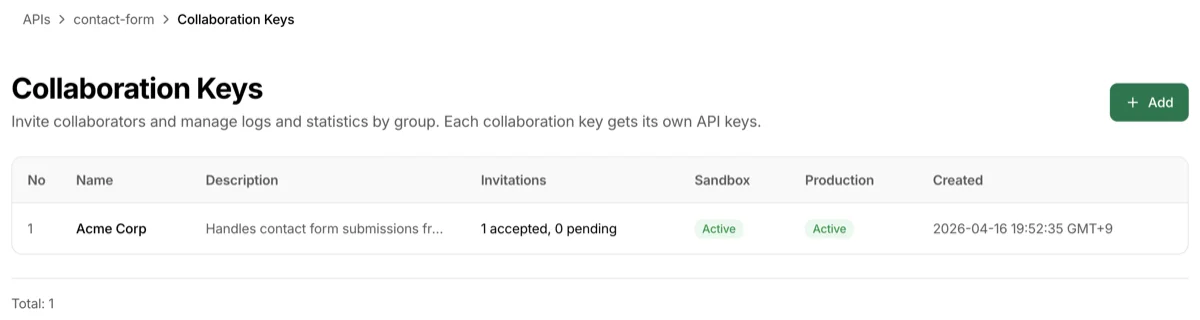
All registered collaboration keys are displayed in a table.
| Column | Description |
|---|---|
| No | Row number |
| Name | Collaboration key name (e.g., partner name) |
| Description | Purpose description |
| Invitations | Invitation status. X accepted, Y pending format |
| Sandbox | Sandbox API key active/inactive badge |
| Production | Production API key active/inactive badge |
| Created | Collaboration key creation time |
Click the Add button at the top to register a new key. Click a name in the table to go to the detail page.
Adding a collaboration key
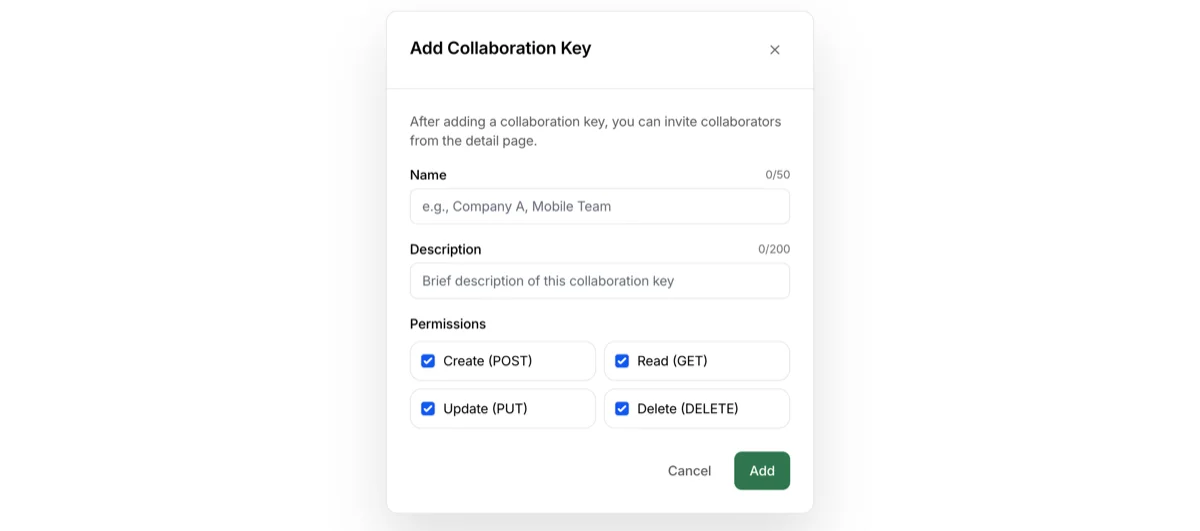
Clicking Add opens a dialog. This step is about creating a collaboration API key — inviting collaborators happens on the detail page afterward.
Input fields
- Collaboration key name — Required. Enter a distinguishable name like a partner or team name (e.g.,
Acme Corp,Mobile Team) - Description — Optional. Briefly note the purpose
- Permissions — Select the API operations this key is allowed to perform
Create (POST)/Read (GET)/Update (PUT)/Delete (DELETE)- All selected by default. Check only what's needed
Saving will immediately issue Sandbox and Production API keys, then navigate to the detail page.
Collaboration key detail
All management for a single collaboration key happens on this screen.
API Key
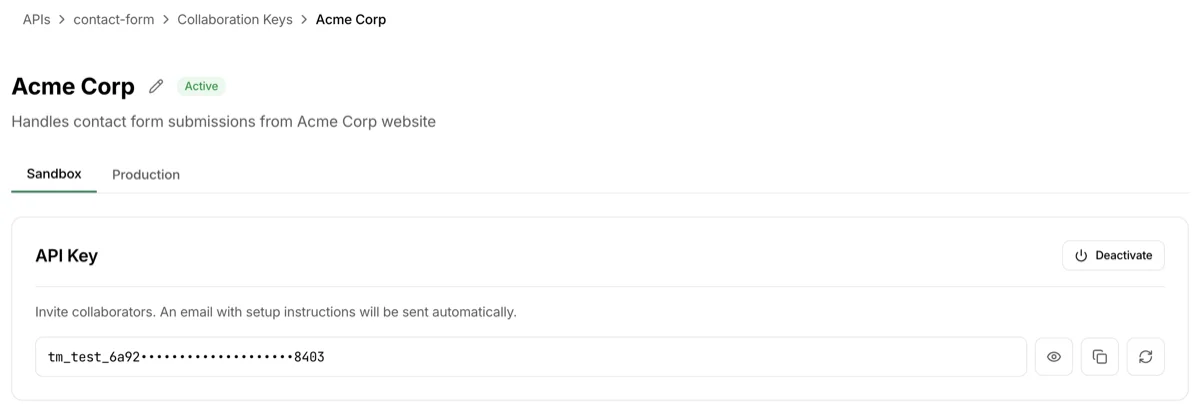
There are Sandbox | Production tabs at the top, managing each environment's API key independently.
- API key display: Hide, copy, and regenerate buttons available
- Active/Inactive toggle (Power icon): Switching to inactive immediately rejects all API calls using this key in that environment. Useful for temporarily blocking a specific collaborator
- Regenerate: The previous key is immediately invalidated and a new one is issued. Make sure to notify the collaborator that the key has changed
Permissions

Specify which API operations this collaboration key can perform.
- Create (POST) / Read (GET) / Update (PUT) / Delete (DELETE) checkboxes
- Click
Saveafter changes - Calling a method without permission returns 403 Forbidden
- Permissions are managed independently per environment, so you can allow broad access in sandbox and restrict in production
Invitations
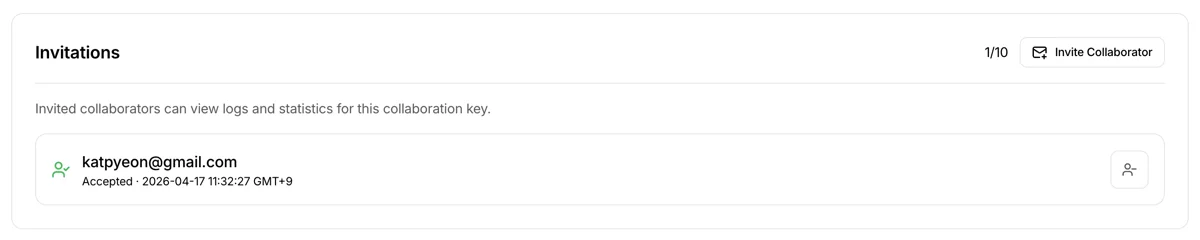
Manage collaborator invitations linked to this collaboration key.
Sending an invitation

Click the Invite Collaborator button to open the dialog. Enter the collaborator's email address and send.
- An invitation email is sent to the collaborator
- When the collaborator logs in, an invitation acceptance banner is also shown at the top of the dashboard
- Invitations are valid for 7 days — after expiration, you need to resend
Actions by invitation status
| Status | Action buttons |
|---|---|
| Pending | Revoke, Resend |
| Accepted | Revoke Access |
| Expired | Resend |
What collaborators can do after accepting
- View shared endpoints on their dashboard
- Check issued API keys (Sandbox / Production)
- Test on the Test & Integration Guide page (Swagger-style, curl/JS/Python samples)
- View logs and statistics for the endpoint
What collaborators cannot do: Change endpoint settings, manage other collaborators, deploy to production directly (can only request).
Notes on revoking access
- Revoking an invitation disconnects the collaborator's dashboard access
- To invalidate the API key itself, use the Active/Inactive toggle or Regenerate
- To fully block access, perform both "revoke access + deactivate key (or regenerate)" together
Danger Zone

- Delete collaboration key — Completely removes this collaboration key
- All API keys, linked invitations, and permission settings for all environments are deleted
- All API calls using this key are immediately stopped
- Past API call records (logs) for this key are preserved, but no further calls can be received
Troubleshooting
- Collaborator didn't receive the invitation email: Check the spam folder. If still not found, click
Resendwhile the status is Pending - Acceptance link says expired: 7-day expiration. Send a new link with
Resend - Want to temporarily block a specific collaborator: Click the API key inactive toggle on the collaboration key detail. Calls are immediately blocked and restored when re-activated
- Works in sandbox but rejected in production: Permissions are independent per environment. Check that CRUD permissions are checked on the Production tab
- Collaborator can't call after regeneration: The previous key is immediately invalidated — you must share the new key with the collaborator