ChatGPT Integration
Overview
AI Integration lets you connect AI tools like ChatGPT to 3Min API, so you can run your endpoints with the same kind of casual chat you already use. Behind the scenes it speaks MCP (Model Context Protocol), an open standard. Once the AI is connected to the 3Min API server, it picks the right tool from the ones we expose and answers your question.
The benefit is concrete. No code is needed to create a new endpoint, search yesterday's call logs, invite a collaborator, or check this month's usage. Skip the dashboard clicks — "Summarize the 5 failed calls from last week" is enough.
3Min API supports two authentication styles. ChatGPT and Claude use OAuth (sign in with your 3Min API account), so there's no API key to manage. CLI/IDE tools like Claude Code or Cursor use API keys that you store locally. This page walks you through connecting via ChatGPT Plugins.
What you can do
The 3Min API MCP server exposes the tools below. The AI looks at your request and picks the right one. Every action is scoped to your own account — other users' resources are never accessible.
Read tools
| Tool | Description | Scope |
|---|---|---|
help |
Returns the 3Min API service guide by topic | Public |
endpoints (list / get) |
List endpoints / view endpoint details | Your own |
logs (lookup / search) |
Single-record lookup, full-text search | Your own |
stats |
Monthly / daily API usage statistics | Your own |
subscription |
Current plan, usage, and billing info | Your account |
collaborators (list_keys / list_invitations) |
Collaboration keys and invitation list | Your own |
Create / Update / Deploy tools
| Tool | Description | Scope |
|---|---|---|
endpoints (create) |
Create a new endpoint | Your account |
endpoints (update) |
Update field definitions and webhooks | Your own |
endpoints (deploy) |
Deploy sandbox config to production | Your own |
collaborators (create_key) |
Create a new collaboration key | Your own |
collaborators (update_permissions) |
Update CRUD permissions for a collaboration key | Your own |
collaborators (invite) |
Send a collaborator invitation email | Your own |
Execution tools
| Tool | Description | Scope |
|---|---|---|
api_call (GET single + list, POST, PUT, DELETE) |
Send an HTTP request to your deployed endpoint (via the gateway) | Your own |
The
DELETEinapi_callinvokes the business logic of your own endpoint (e.g., a "cancel order" API). It does not delete the endpoint itself.
Safety: actions intentionally not exposed to AI
The actions below are deliberately excluded from MCP. We don't want an AI mistake or accidental call to wipe data or trigger billing surprises. When you need to do these, sign in to https://3minapi.com directly.
| Excluded action | Where to perform it |
|---|---|
| Delete endpoint | Dashboard → APIs → Endpoint detail |
| Delete / deactivate collaboration key, regenerate API key | Dashboard → APIs → Endpoint detail → Collaboration keys |
| Revoke collaborator invitation | Dashboard → APIs → Endpoint detail → Collaborators |
| Change / cancel plan | Dashboard → Settings → Subscription |
| Regenerate / delete MCP API key | Dashboard → Settings → AI Integration → CLI / IDE |
| Delete account | Dashboard → Settings → Profile |
How to connect
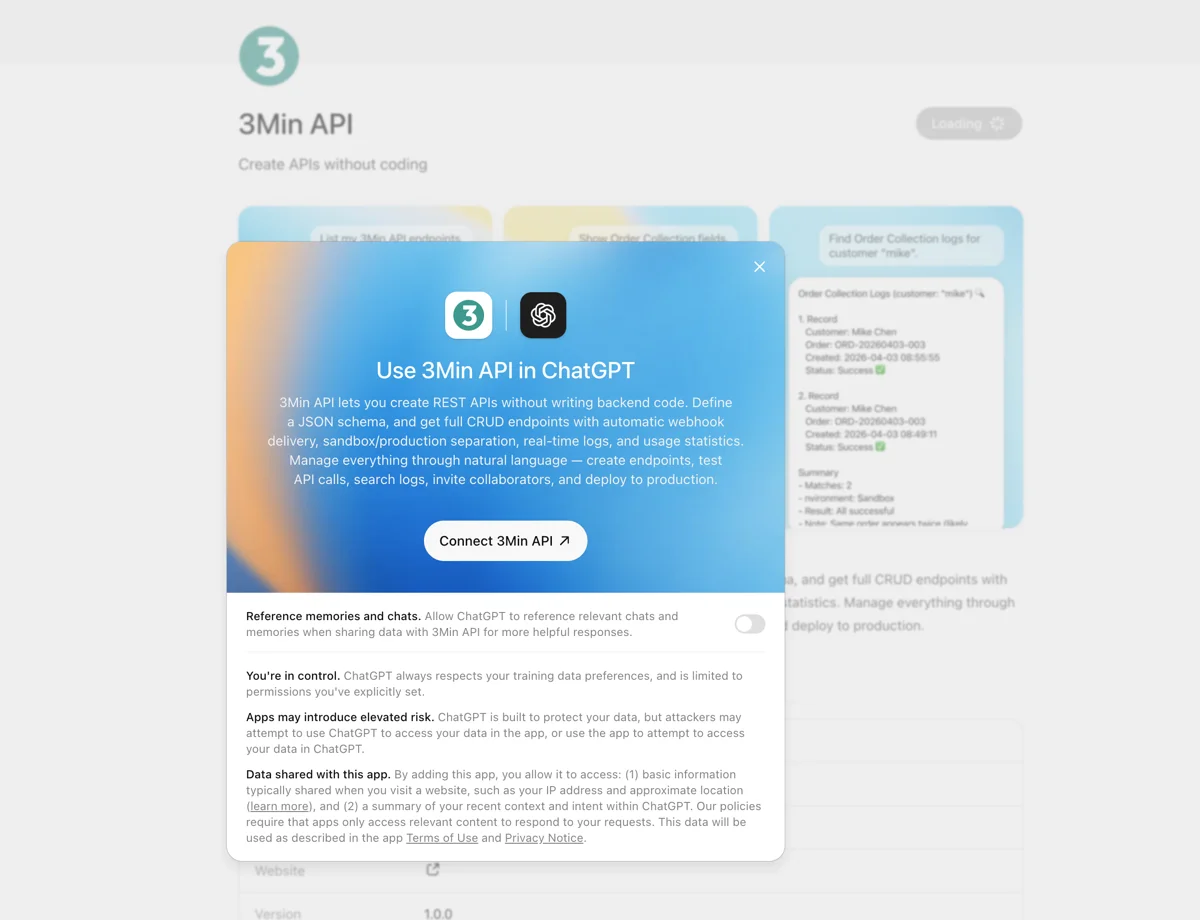
ChatGPT uses the OAuth flow. There's no API key to paste in anywhere — you sign in once with your 3Min API account, and you're done.
In a hurry? Open the 3Min API listing in ChatGPT and install the plugin.
Step 1 — Visit ChatGPT Plugins
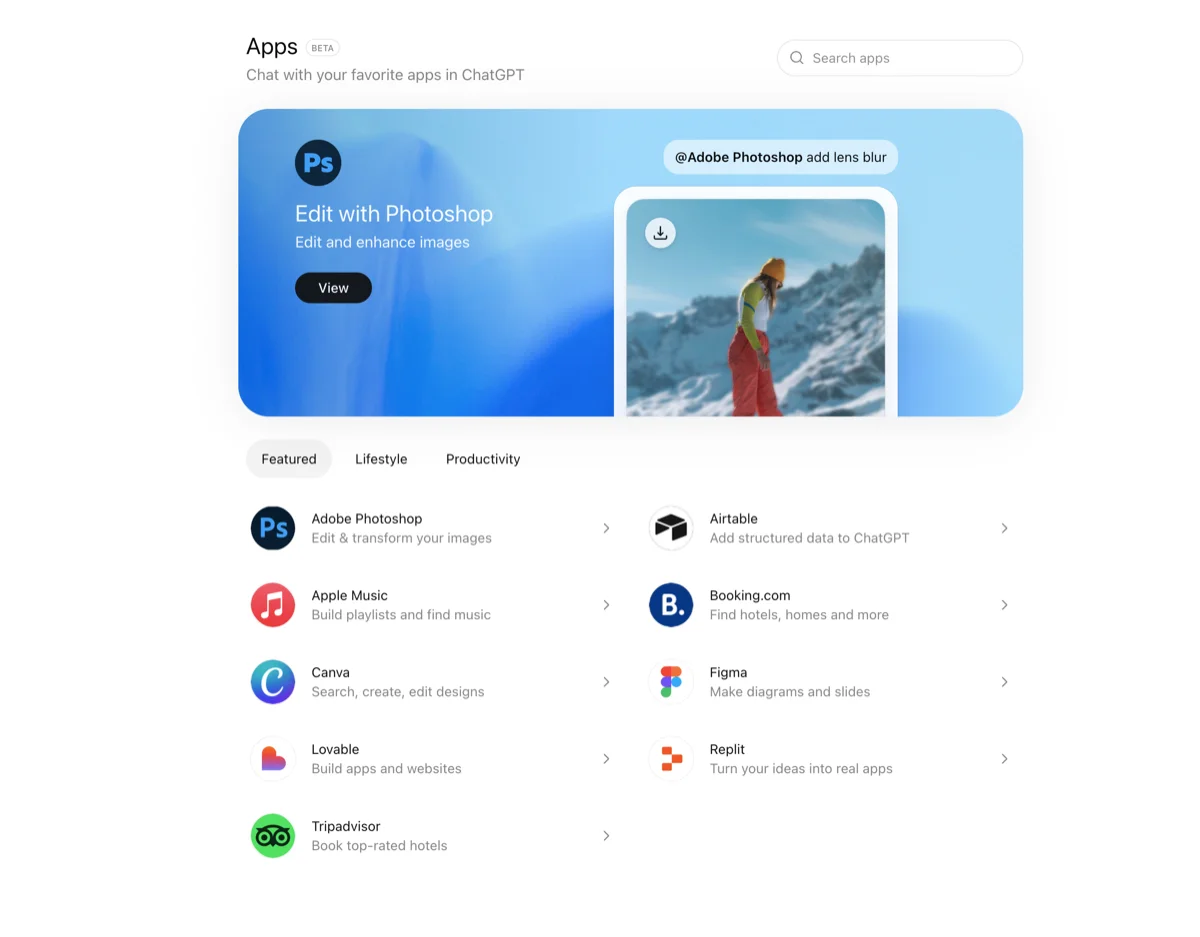
Visit ChatGPT Plugins.
Step 2 — Search for 3min api
Type 3min api in the search box and click the result.
Step 3 — Click Connect, then sign in via OAuth
When you click Connect, the 3Min API login page opens in a new window. Sign in with your usual 3Min API account and permissions are granted automatically. No API key is entered manually.
Step 4 — Use it in a new chat
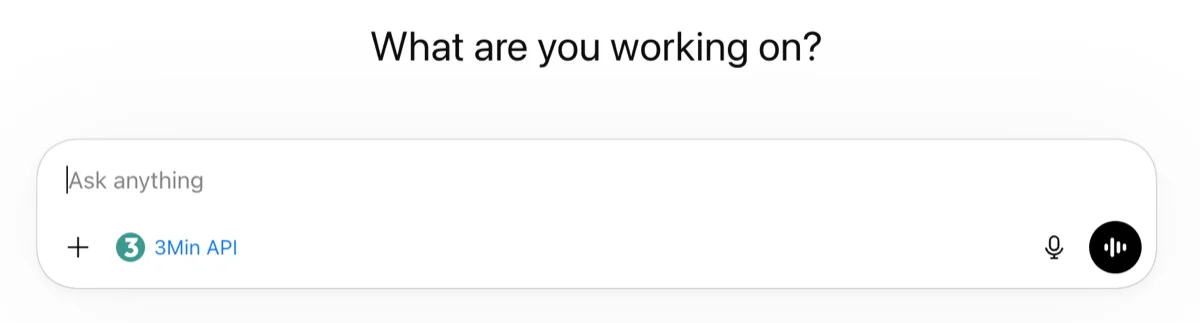
Open a new chat and start using it.
If ChatGPT doesn't pick up 3min api on its own, type @ in the chat box to bring up the tool list and pick 3minapi directly.
Example prompts
These plain-language prompts work well:
- "Show me my API endpoint list."
- "Create an endpoint for customer inquiries with name, email, and message fields."
- "Summarize the 5 failed calls from yesterday."
- "How much have I used this month, through yesterday?"
- "Invite chris@example.com as a collaborator on the user-signup endpoint."
For requests that create, update, or deploy something, the AI confirms with you before going through. Read the response carefully so unintended changes don't slip in.
Common pitfalls
The Plugins catalog doesn't show up in the ChatGPT desktop app
The desktop and mobile apps don't always expose the Plugins directory. Use a web browser at https://chatgpt.com/plugins.
3min api doesn't show up in search results
ChatGPT rolls out plugins gradually by region and plan. Try searching again in a few days. If it still isn't there, you can use the Claude integration or the MCP integration (CLI / IDE) instead.
What if someone else's data gets mixed in?
It can't. Every tool only touches resources owned by the OAuth-signed-in account — other users' endpoints and logs are never visible.
The AI deleted my endpoint!
It can't. Destructive actions are excluded from MCP, so no matter how the AI tries, your data stays put. To actually delete something, sign in to https://3minapi.com.
Replies keep coming back without using any tool
Type
@in the chat box and pick 3minapi to force tool use, or mention the tool by name in the prompt — for example, "Using 3minapi, …".