 yeonghyeon · Apr 28, 2026
The Shortest Path from API to Google Sheets — Auto-record Every Call as a New Row
Hi, I'm yeonghyeon, leading the development of 3Min API.
This post started from a request our operators kept making: "Just have orders pile up in a Google Sheet, one row at a time." We heard it again and again. There were already ways to glue this together with extra automation tools, but adding yet another tool is itself a burden. So we built the Google Drive and Sheets integration directly into 3Min API. Connect your Google account once, and from then on every API call appends a new row to your own sheet automatically.
This is a guide for anyone meeting the feature for the first time. We'll walk through why this needed to exist, what's different about doing this without an automation tool in the middle, and how far you can get in five minutes. No prior knowledge required.
The real problem behind "Just have it pile up in a sheet"
The reason people want data in a sheet is almost always the same. To see revenue at a glance, to filter and sort by hand, to hand it off to an accountant or marketer as-is. Sheets fit that purpose better than anywhere else, and there's no need to move it elsewhere. In other words, the sheet is the goal — every step in between is overhead.
And yet connecting "data received via API" with "my sheet" turns out to be surprisingly hard. The usual route looks like this:
- Receive data into something like 3Min API,
- Sign up for yet another automation tool — Zapier, Make, n8n,
- Pipe the data into that tool via webhook,
- Have that tool, in turn, append a row to Google Sheets.
It works when it works. But three burdens come along for the operator:
- Tool cost — every automation tool comes with a monthly subscription, and as call volume grows you need to upgrade plans.
- Learning curve — you connect nodes, build triggers, and set up authentication one more time. That's a lot of steps for "appending a single order row."
- Risk of loss — if the automation tool is in maintenance or hits its rate limit, incoming data can be silently dropped during that window. A row missing from the sheet leaves no trace of what was lost.
The last one was decisive. Losing data isn't just an inconvenience for a business — it's a hole in the books. You can't run a business on the assumption that the automation tool is always healthy.
So we picked the direct answer — put the sheets integration inside the product
The fix was straightforward: don't put another tool between 3Min API and Google Drive. Connect a Google account once, allow a single permission on the consent screen, and from then on every API call appends a row to a sheet in your own Drive. No automation tool, no extra subscription, no trigger configuration.
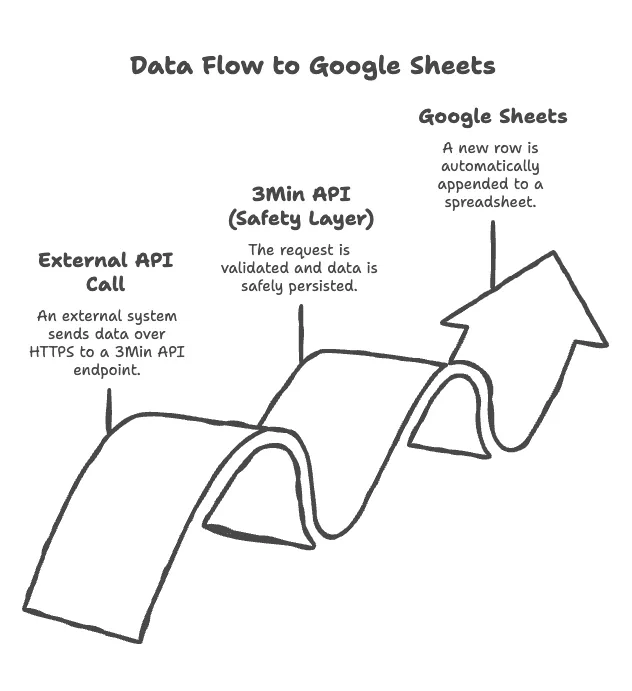
External call → first stored safely in 3Min API → automatically recorded in Google Sheets. No automation tool sits between them.
Here's what changes when it works this way:
- One tool is enough. Everything is configured inside 3Min API.
- Data is always saved safely first. Before a row is appended to the sheet, the call itself goes into 3Min API's logs and archive. Sheet recording is a bonus on top — not the lifeline.
- Even on failure, the original survives. Temporary quota overruns are retried automatically. If even retries don't make it through, the sheet just misses a row — the data itself doesn't disappear.
- Permissions stay narrow. The only permission requested from Google is
drive.file. 3Min API can only access sheets it created itself; the rest of your Drive is untouched.
To summarize: If the sheet is the goal, the path to it should be as short as possible.
What you'll see in your Drive after connecting
The fastest way to understand what gets created is to look at the shape directly. A folder called 3Min API appears at the top level of your Drive, organized like this:
3Min API/
├── user-signup/                              ← per-endpoint folder
│   ├── sandbox_user-signup_2026-04           ← monthly sheet (sandbox)
│   ├── sandbox_user-signup_2026-05
│   └── production_user-signup_2026-05        ← monthly sheet (production)
└── order-create/
    └── production_order-create_2026-05
The rule is simple: one folder per endpoint, with one sheet per environment (sandbox/production) per month. A new sheet is created automatically on the first call of each new month, so a single sheet never grows too heavy. You can move sheets to other folders or rename them safely — 3Min API tracks files by ID, so even when location and name change, new rows continue to land in the same file.
Each sheet's first row — the header — has two kinds of columns:
- Meta columns —
record_id,created_at,config_version,operation,status,collaboration_key. Filled in automatically by the system. They tell you which call produced this row. - Payload columns — the fields you defined (email, amount, address, …) appear with a
payload_prefix, one column each. The prefix exists on purpose, so you don't confuse business data with metadata.
When you add a new field to the endpoint later, the sheet header automatically extends to the right. The new column is empty for older rows and starts filling from the next call onward. As long as you don't delete or reorder header cells yourself, the mapping stays correct.
Sandbox and production move independently
Every endpoint in 3Min API has fully separate sandbox (development/testing) and production (live service) environments. The Google Sheets integration follows the same separation. The integration can be turned on or off independently per environment tab, and sheet files are created separately per environment.
This leads to a safety check you'll meet often. Even when you've fully connected sheets in sandbox and then deploy the endpoint to production, the production sheets integration does not follow automatically. You need to press Connect one more time on the production tab's Google Sheets card before live recording starts. We deliberately ask twice — mixing test data with real revenue data in a single sheet is one of the messiest accidents possible.
Five minutes from zero to your first sheet row
Reading is one thing; seeing it run is faster. The order below should get you from nothing to a working pipeline. No code, no extra tools — just 3Min API.
1. Create an account and your first endpoint
After signing up, a short onboarding walks you through creating your first endpoint. Google Sheets integration is available even on the Free plan. Pick something from your business and create a single endpoint to try it on. Anything works. To start, simple events that fit one row each — order received, inquiry submitted, booking requested — are the best fit. Two or three fields are plenty. The full procedure is in the endpoint creation manual.
If you'd like to back up a step and understand what an endpoint is in the first place, What is an API? A beginner's guide is the better entry point. Once you have the sense of "a defined window where defined messages flow back and forth," everything else follows naturally.
2. Start the integration from the Google Sheets card
On the endpoint detail page you'll see a Google Sheets card. Pressing Connect on that card sends you to Google's consent screen.
The only permission 3Min API requests is drive.file — a narrow permission that only lets the app touch sheets it created itself. If Google shows individual permission checkboxes, please leave them all checked when you approve, otherwise sheet recording won't work.
3. Confirm with a test send
Once connected, the card shows a Connected badge along with the sheet's filename. Press Test send once. A sample row is appended to the sheet so you can see exactly what a single call looks like once it lands. It's the fastest way to confirm everything end-to-end without any developer tools.
From now on, every call to this endpoint appends a new row to the sheet. That's all there is.
Things worth knowing
Google Sheets has its own write quota
Sheet writes are subject to Google's per-user sheet write limit, not a 3Min API limit. It's roughly 60 writes per minute, and all endpoints connected to the same Google account share that quota. Think of the entire integration as moving on top of this single ceiling.
At normal traffic levels you'll rarely notice this limit. Over time, though, if calls grow steadily and you start hitting it more often, that's actually a good sign — your business is growing. Since Google's policy makes per-user lifts difficult, at that point it's wise to use the sheet for summary/dashboard purposes, download originals daily or weekly from Logs and Archives, and consider introducing your own database. 3Min API still works as your entry gateway at that stage, so the migration carries little operational burden.
You can stay aware via system notifications
So you can react immediately when a sheet write fails or a reauthentication is needed, you can register a Discord/Slack/Telegram channel per endpoint. Connect a channel once under Endpoint Detail's notification settings, and the two events — sheet write failure and Google reauthentication required — are delivered to that channel directly. It's the lightest way to confirm sheets are filling correctly without checking the dashboard each time.
What 3Min API quietly handles in the meantime
Events that would actually trigger a notification don't happen often. The space in between is filled by 3Min API in three ways:
- Automatic retry — temporary quota overruns (429) and transient failures are retried for about 5 minutes, absorbing most of them. We also keep requesting quota increases from Google to expand throughput over time.
- The original is always safe — even when retries ultimately fail, only the sheet misses a row; the original call is preserved in Logs and Archives. A failed sheet write doesn't mean lost data.
- Processed in call order, one row at a time — sheet recording follows call order, and rows usually appear within a few seconds. During traffic spikes, rows may land later than usual or land slightly out of order; if you need exact ordering, sort the sheet by the
created_atcolumn.
One thing you can try today
You don't have to set up a grand automation pipeline in one go. Here is the only thing worth trying first:
Create your first endpoint → turn on Google Sheets integration → press Test send once.
That alone gives you a small pipeline that starts piling business data into your own Drive automatically. From there, you can add fields, hand an API key to a partner, or chart the revenue column. Rather than designing every automation up front, it's better to see one row land in the sheet via the shortest possible path first.
For deeper settings and edge cases, the Google Sheets integration manual has it all. If you'd like to hear why we built this in the first place, Why we built 3Min API tells that story.
Related Posts
Automate Order Data with n8n: From API to Google Sheets and Slack in 5 Minutes
Learn how to receive order data through 3Min API and automatically log it to Google Sheets and send Slack notifications using n8n — no code required.
Build APIs Right Inside ChatGPT — 3Min API Has Joined ChatGPT Apps
3Min API has joined ChatGPT Apps. Without writing code or renting a server, you can now build, test, and invite collaborators to your APIs from inside your ChatGPT conversations. We walk through what changes — with a small wine business scenario.
Manage Your APIs with AI: Introducing MCP Support
3Min API now supports MCP — connect your AI assistant to manage endpoints, check logs, and more through natural conversation.