 Chae-won · Mar 31, 2026
Manage Your APIs with AI: Introducing MCP Support

Hi, it's Chae-won.
What if you could manage your APIs just by talking to an AI assistant? No dashboard clicking, no documentation digging — just say what you need, and it happens.
That's exactly what we've built. 3Min API now supports MCP, which means you can connect AI assistants like Claude to your account and manage everything through natural conversation.
What is MCP?
MCP stands for Model Context Protocol. Think of it like USB-C for AI — a standard connector that lets AI assistants talk to external tools and services.
Before MCP, AI assistants could only chat. They could answer questions and write text, but they couldn't actually do things in your tools. MCP changes that. It gives AI assistants hands to reach into services like 3Min API and take action on your behalf.
What can you do with MCP + 3Min API?
Once connected, your AI assistant can do almost everything you'd normally do on the dashboard — through conversation. Let's walk through a real workflow, step by step.
Browse your endpoints
Type "Show me my endpoints" and Claude instantly pulls up your full endpoint list. No login, no menu navigation — just the information you need.
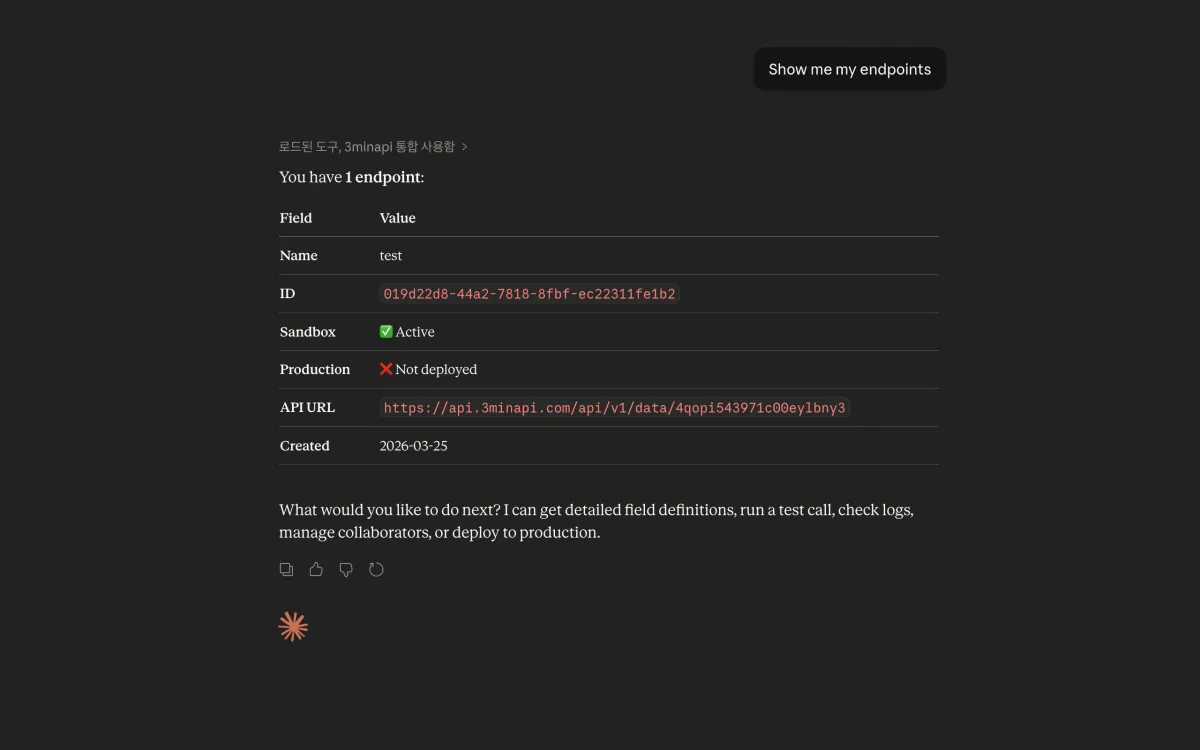
Asking Claude to show all endpoints — the full list appears instantly.
Create a new endpoint
Need to collect customer feedback? Just describe what you want: "I want to receive customer feedback. I need the customer's name, rating, and comment. The name should be searchable."
Claude designs the field schema for you — including setting the name field as searchable — and creates the endpoint on the spot. No need to understand JSON schemas or navigate configuration screens.
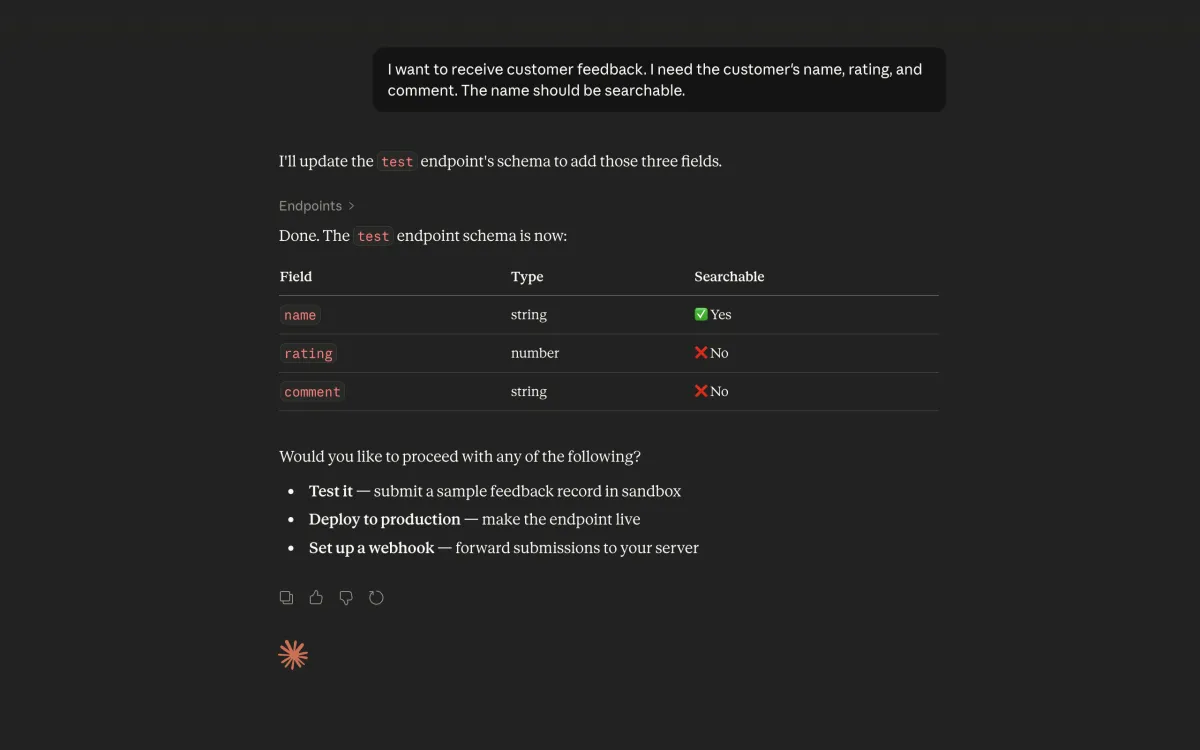
Describing what data you need, and Claude sets up the endpoint with the right field definitions.
Test it immediately
Right after creating the endpoint, you can test it without switching tools. Say "Send a test entry with name John, rating 5, and comment Great Service" and Claude sends an actual API call to your new endpoint.
No Postman, no curl commands, no copy-pasting API keys. Everything happens in the same conversation window.
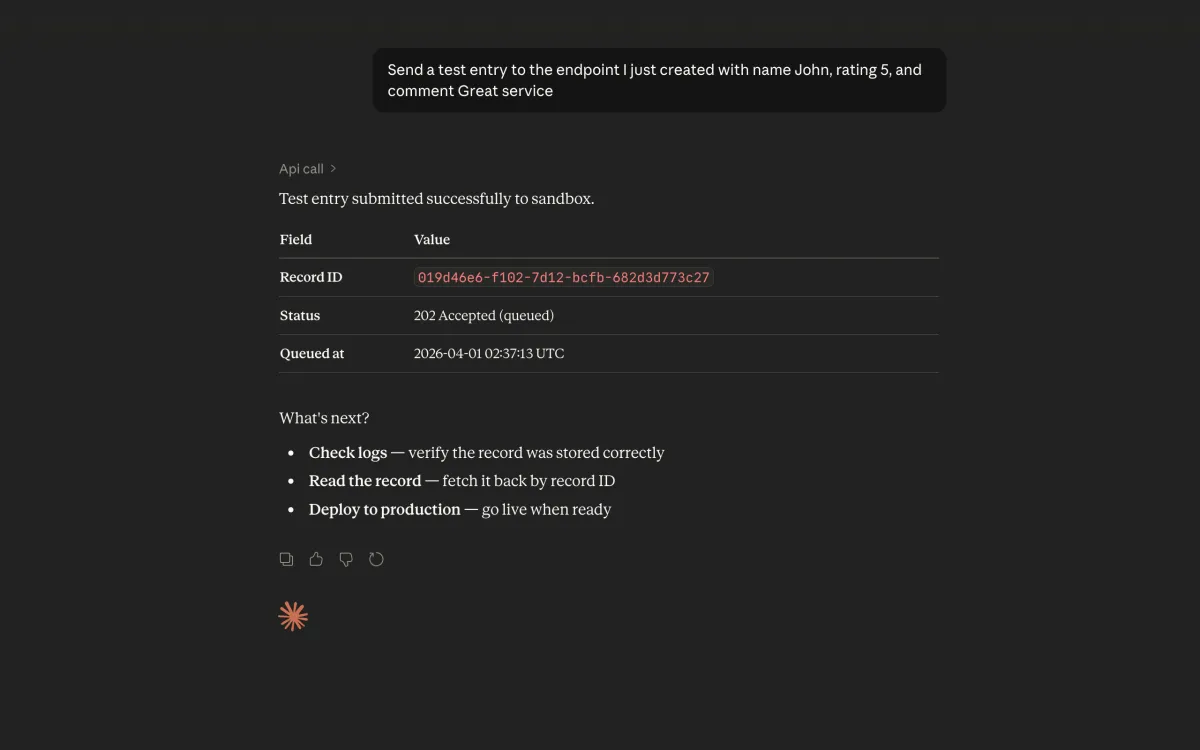
Testing the endpoint immediately — Claude sends a real API call and shows the response.
Search your data
Want to find specific records? Ask "Show me all feedback from the last 7 days that mention John" and Claude searches your API logs with the right filters applied.
This is where the searchable field we set up earlier comes in — Claude can filter by the customer name because we marked it as searchable during creation.
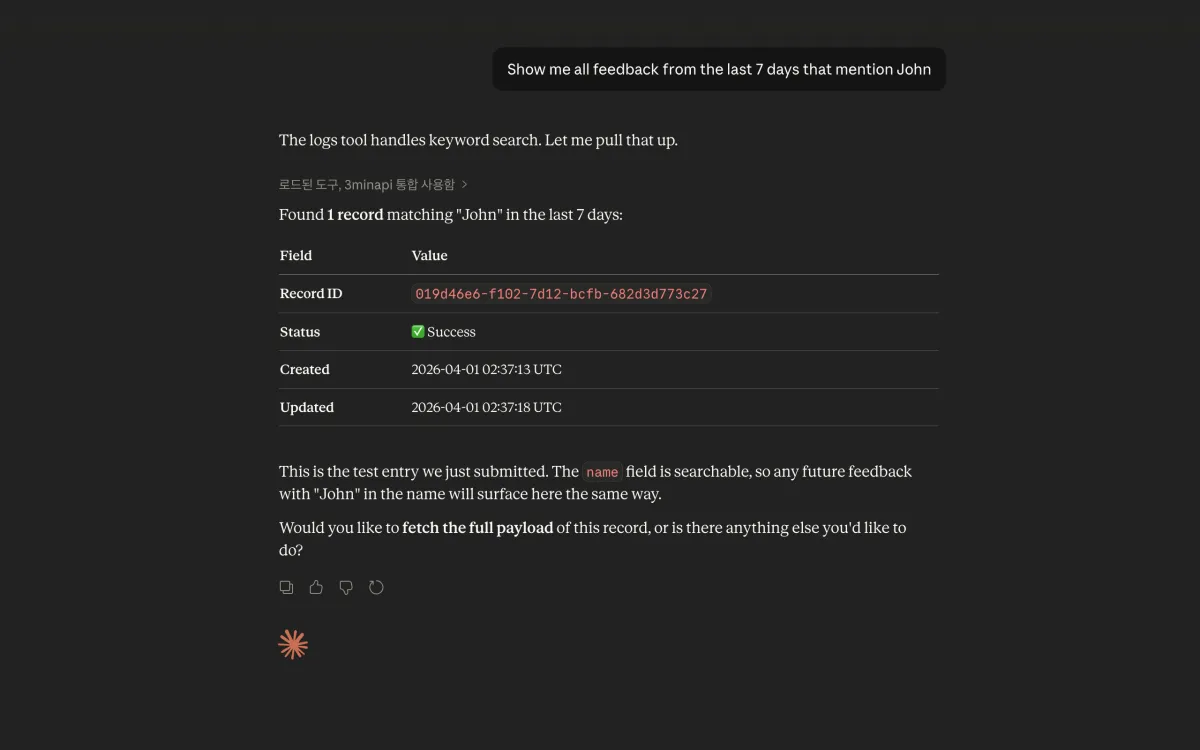
Searching logs by customer name — the searchable field makes it possible to filter right from the conversation.
And much more
Beyond this workflow, you can manage your entire API setup through conversation:
- "Deploy my endpoint to production" — Move from sandbox to production in one sentence
- "How many API calls did I get this week?" — Check usage stats and daily trends
- "Invite my partner's developer as a collaborator" — Manage collaboration keys and invitations
- "What's my current plan?" — Check subscription details and usage limits
- "Find last month's orders from Acme" — Search records by keyword and read their payloads
It's like having a conversation with someone who already knows your entire API setup.
Who is this for?
Business owners without a dev team
You don't need to learn a dashboard interface. "How's my API doing?" is a perfectly valid question now. No technical jargon, no UI navigation — just ask in plain language and get answers.
Claude users
If you already use Claude on the web or in the desktop app, you can integrate 3Min API management into your existing workflow. No separate tool needed — it all happens in the same conversation window. Once connected, it works on Claude mobile too.
Developers (Claude Code, Cursor)
Manage your APIs without leaving your coding environment. Check logs, deploy changes, invite collaborators — all from your terminal or IDE. Stay in flow.
How to connect
Option 1: Claude Connectors directory (Recommended)
3Min API is listed in the Claude Connectors directory, so connecting is simple. No API keys to manage, no configuration files to edit, no server URL to type in.
- Open Settings > Connectors in Claude
- Search for
3minapiand select 3Min API - Click Connect
- Sign in with your 3Min API account — done
OAuth handles everything securely in the background. Directory connectors work on every Claude plan, including Free, and once connected on the web it works on Claude desktop and mobile too — monitor your APIs from anywhere.
For the detailed step-by-step guide, see the Claude integration guide.
Option 2: ChatGPT Plugins (Recommended)
3Min API is also listed in the ChatGPT Plugins directory. The flow is the same as Claude — search, connect, sign in. ChatGPT calls these plugins rather than connectors, but the underlying MCP connection is identical.
- Visit chatgpt.com/plugins
- Search for
3min apiand select it - Click Connect
- Sign in with your 3Min API account — done
For the detailed step-by-step guide, see the ChatGPT integration guide.
Option 3: CLI / IDE (For developers)
If you use Claude Code, Cursor, or other MCP-compatible tools, you can connect with an API key:
- Go to Settings → AI Integration in your 3Min API dashboard
- Generate an MCP API key
- Add the server configuration to your tool
This method supports every tool, including log search and payload lookup. See the MCP documentation for the full setup guide.
What about security?
Your data stays safe. MCP connections are authenticated — either through OAuth (directory connector) or your personal API key (CLI/IDE). The AI assistant can only access your own data, and destructive actions like deleting endpoints aren't available through MCP at all.
The AI will also confirm before making changes, so you're always in control.
Frequently asked questions
Do I need a paid Claude plan to use MCP?
No. 3Min API is a directory connector, which is available on every Claude plan including Free. For the CLI method, any MCP-compatible tool will work.
Which 3Min API plans support MCP?
All plans, including Free. MCP access is available to every 3Min API user.
Can the AI accidentally change my data?
The AI always asks for confirmation before making changes. Additionally, irreversible actions like deleting endpoints are not available through MCP.
Does it work with AI assistants other than Claude?
MCP is an open standard. Any AI assistant that supports MCP can connect to 3Min API. We currently optimize for Claude integration.
Can I use it on mobile?
Yes. Once you connect from the Claude Connectors directory, the same connection works on the Claude mobile app. You can check your API status on the go.
Can I still use the dashboard?
Absolutely. MCP is an additional option, not a replacement. Use whichever method feels most natural to you.
What happens if the MCP connection drops?
Your data is unaffected. MCP is a read/write interface to your existing 3Min API account. If the connection drops, just reconnect — everything is still there.
Is there a limit on how many MCP requests I can make?
MCP requests count toward your plan's API usage limits, just like regular API calls. Check your plan details for specific limits.
Try it now
MCP support is available for all 3Min API users. Whether you're on the Free plan or Pro, you can connect your AI assistant today.
- Choose your connection method in the MCP documentation
- Connect your AI assistant
- Start with something simple — "Show me my endpoints"
Managing APIs through conversation might feel unusual at first. But once you try it, going back to manual dashboard navigation will feel like the old way of doing things.
If you run into any issues or have feedback, reach out at contact@3minapi.com.
Related Posts
Webhooks, Polling, and Now Tasks — A Third Way to Hand Work to AI
Webhooks and polling both fall short when you ask an AI to run a job that takes a while. Here's why we built Tasks and how they work, explained with the same delivery analogy.
Claude connectors: 3 months of waiting, 4 days to approval
3Min API is now in the Claude connector directory. An honest account of a Google Form, three months of silence, and four days to approval. Connect on any plan.
Build APIs Right Inside ChatGPT — 3Min API Has Joined ChatGPT Plugins
3Min API has joined ChatGPT Plugins. Without writing code or renting a server, you can now build, test, and invite collaborators to your APIs from inside your ChatGPT conversations. We walk through what changes — with a small wine business scenario.