 yeonghyeon · Apr 13, 2026
What Is a Database? A Beginner's Guide for Spreadsheet Users
Hi, I'm yeonghyeon, leading development at 3Min API.
Across previous posts, both Chae-won and I have used the word "database" over and over. It showed up when explaining webhooks, when talking about JSON and schemas, and when discussing preparing data for the AI era. It was never absent.
But we've never dedicated a post to asking "what is a database, really?" Today we'll nail that down. It's the first piece of a series that continues into APIs and JSON.
📚 Data Basics for Non-Developers — A Three-Part Series
- Database — The Container That Holds Data (Current)
- API — The Gateway for Safe Access
- JSON — The Shape of the Messages That Pass Through
This post has one goal. Before studying the complex technology behind the word "database," let's first build the sense of "organizing your business data as tables in front of you, not just in your head." Once that sense is in place, the rest follows naturally when you need it. So you don't need any prior knowledge. It helps if you know Excel as "a tool for organizing data in a table format," and even if you don't, we'll look at it together in the body. Read at ease.
What Is a Database
Let's start with the dictionary definition. Wikipedia describes a database as "an organized collection of data." In technical terms, the system that stores, manages, and retrieves that data is called a DBMS (DataBase Management System), but in everyday speech we use "database (DB)" to cover both.
In one line:
Database = a system built to store data in a structured way, find it quickly, and let many people use it at the same time.
You don't need to memorize this definition. In fact, you already use several "databases" every day.
Databases in Everyday Life
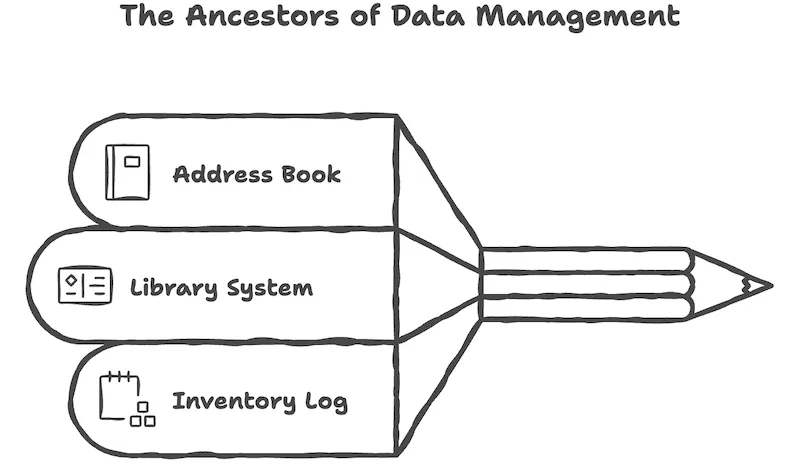
Think of these three things:
- An address book: names, phone numbers, and addresses organized one per line. Look up a name, and the number comes right out.
- A library checkout card: each book has a card recording who borrowed it and when. Fill it in on checkout, erase it on return.
- A convenience store inventory log: product names, quantities, and receive dates. Decrease when something sells, increase when new stock arrives.
See the pattern? There's a fixed format, data of the same shape accumulates over time, and you can find what you need quickly. That's the essence of a database. Whether the tool is paper, Excel, or a dedicated server, the underlying principle is the same.
Types of Databases
Modern databases come in several flavors depending on use. A quick tour:
- Relational databases (RDB): the most widely used and oldest style. Data is stored in "tables" like spreadsheets, and tables are linked to each other. MySQL, PostgreSQL, and Oracle fall here.
- Document databases: instead of tables, they store whole documents like JSON. Useful when the data structure changes often. MongoDB is the best-known example.
- Graph databases: they put the "relationships" between people or things at the center. Good for social networks and recommendation engines.
- Vector databases: a style that's risen with the AI era. It stores text or images as arrays of numbers so you can quickly find things "close in meaning."
Today's post focuses on the most widely used type and the basic workhorse of business — relational databases.
A Wine Shop Owner's Story
Theory alone doesn't land well. It's faster to follow a real situation.
Imagine you've opened a small wine shop. One location, a handful of customers a day at first. As the business grows, the way you manage data grows with it.
Stage 1: A Paper Ledger
In the early days, a single notebook is enough. Date, customer name, wine name, amount — you write these four things down each day. Five customers today, five lines; ten, ten lines.
This approach is surprisingly strong. No install required, readable during a power outage, easy to hand off to someone else. But it's weak at scale. Once you pass a hundred regulars, trouble starts. "Who was it that bought Château Margaux last month?" — you have to flip through the ledger from front to back. Inventory counting is manual too.
Stage 2: Excel
You expand to three locations. You open Excel. In most cases you just write every transaction into a single sheet, row after row. It's the most intuitive thing to do.
Sales sheet (everything in one sheet)
| Date | Customer Name | Contact | Wine Name | Price | Qty |
|---|---|---|---|---|---|
| 2026-04-01 | Alex | alex@example.com | Château Margaux 2020 | 89,000 | 1 |
| 2026-04-02 | Maria | maria@example.com | Pinot Noir Reserve | 45,000 | 2 |
| 2026-04-03 | Alex | alex@example.com | Riesling Kabinett | 32,000 | 1 |
| 2026-04-05 | Alex | alex@example.com | Château Margaux 2020 | 89,000 | 1 |
At first this is comfortable. Everything is on one screen, and Excel's built-in filter, sort, and sum functions handle a lot. You can get by like this for a while.
But as transactions pile up, cracks appear.
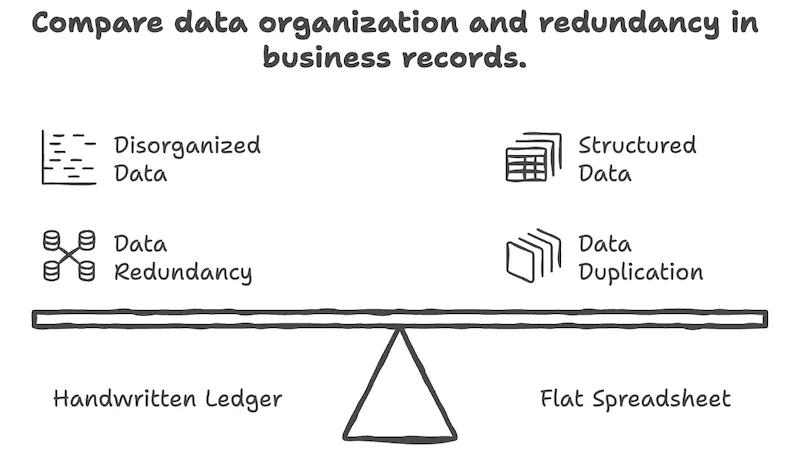
- The same information repeats. If Alex shopped three times, his name and contact are written three times. Every time the same wine sells, the wine name and price are written again.
- A single change means editing many rows. Alex's contact changed? You have to find every past transaction and update them one by one. Miss one row and the data gets tangled.
- A typo creates a different person. "Alex" one day, "alex" the next, "Alexander" later — when you aggregate, it looks like three different people.
- You can't edit simultaneously. If two people edit the same file, one side's changes vanish.
- Someone has to manually merge files from three locations.
- It doesn't auto-connect with your online store, payment system, or accounting software.
The root problem is "writing the same information in multiple places". From this one cause, the other headaches follow.
Stage 3: A Database
The wine shop opens an online store. Orders come in 24 hours a day — from the store POS by day, from the website at night, from partner restaurants on weekends. A single-sheet Excel is physically impossible.
This is the point where you need a database.
One note first. The picture I'm about to paint — "orders piling up automatically in an online store" — isn't actually something a database produces alone. A web server that hosts the website, an API that lets systems exchange data, and a webhook that notifies you the moment something happens — all of these have to work together. Explaining them all at once would only tangle things up in your head. So today we'll isolate and look at just "what a database is responsible for". The server, API, and webhook stories will come in the next posts in this series.
The Key Is Separation
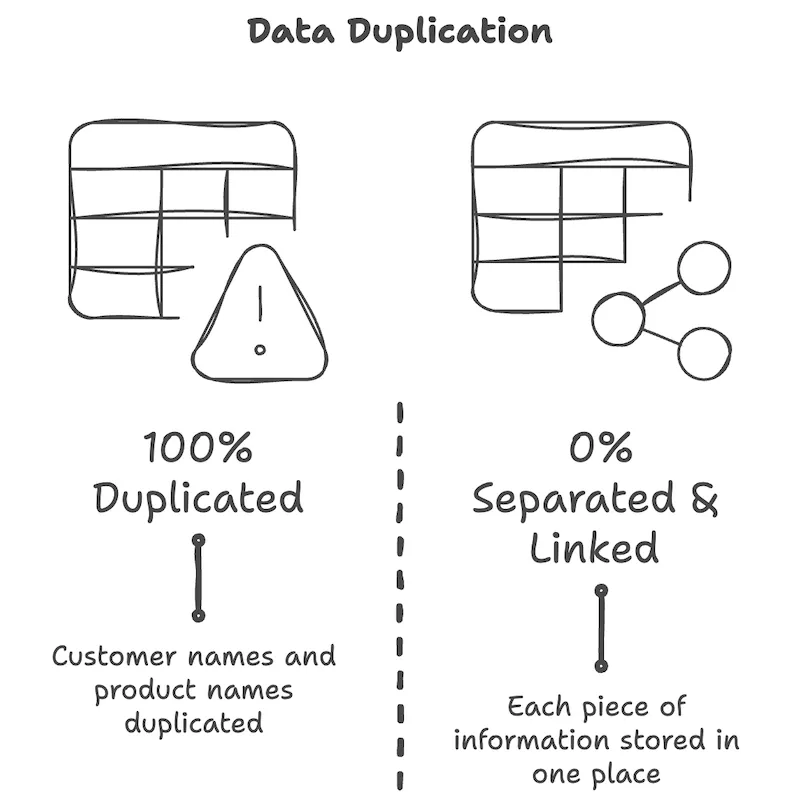
The real problem exposed at Stage 2 was "writing the same information in multiple places." Databases tackle this head-on. The method is simple: split information of different kinds into separate tables, and link them by numbers.
Let's split the wine shop's flat sheet into three tables.
Customers table
| Customer # | Name | Contact |
|---|---|---|
| 001 | Alex | alex@example.com |
| 002 | Maria | maria@example.com |
Products table
| Product # | Wine Name | Price |
|---|---|---|
| 101 | Château Margaux 2020 | 89,000 |
| 102 | Pinot Noir Reserve | 45,000 |
| 103 | Riesling Kabinett | 32,000 |
Sales table
| Date | Customer # | Product # | Qty |
|---|---|---|---|
| 2026-04-01 | 001 | 101 | 1 |
| 2026-04-02 | 002 | 102 | 2 |
| 2026-04-03 | 001 | 103 | 1 |
| 2026-04-05 | 001 | 101 | 1 |
Compare the three tables with the flat sheet. The difference is striking.
- A name appears exactly once in the Customers table; a wine name and price appear exactly once in the Products table.
- The Sales table uses numbers only instead of names.
- Even if Alex visited four times, the string "Alex" exists on just one row — in the Customers table.
Why link by number? Because names or contacts can change or be written in many ways, but a number, once assigned, doesn't change. If Alex's contact changes, you update a single row in the Customers table, and every past and future lookup of his transactions picks up the latest info automatically. The "find every row that says Alex and fix them" chore from the flat sheet vanishes.
What was sheet · header · row in Excel is called Table · Column · Record (or Row) in the database world. Those three are the basic units. The terminology changes, but what you see is the same as the tables you just saw.
A System Runs on Top of the Separated Structure
At this point you might think, "couldn't I just split my Excel into three sheets myself?" You could. The structure itself is possible in Excel. But a service that actually runs on the data needs things Excel can't handle — and a database picks those up.
Now the online store is open. While the system runs, records pile up in the database's Sales table like this.
Sales table (automatically recorded)
| Time | Customer # | Product # | Qty | Channel |
|---|---|---|---|---|
| 2026-04-14 10:23:14 | 047 | 101 | 1 | Website |
| 2026-04-14 10:23:29 | 112 | 205 | 2 | Store POS |
| 2026-04-14 10:23:41 | 089 | 101 | 1 | Website |
| 2026-04-14 10:23:55 | 204 | 103 | 3 | Restaurant |
Unlike the flat sheet, no one is typing this in by hand. The website, the POS, and the restaurant systems are each pushing records in on their own. Even when dozens of records arrive per second from different places, the database receives them without flinching.
Compared to Excel, four things change at the database stage.
- Many systems access it at once. The website, the POS, and the accounting software read and write the same data in real time.
- Rules are enforced. A rule like "a sales record must have a customer number and a product number" is checked by the database itself. Data that violates the rule never gets in.
- Lookups are fast. Even at millions of records, indexes (a kind of catalog) find a specific customer's orders instantly.
- Backups are automatic. Even if a server fails, the data is replicated on other servers.
From the era when someone had to manage every Excel cell by hand, we've moved to an era where a separated structure and automated rules protect the data.
Excel and Databases, Side by Side
Everything so far, on one page:
| Item | Excel | Relational Database |
|---|---|---|
| Simultaneous edits | Conflicts | Hundreds–thousands at once |
| Data integrity | Checked by people | Verified by the DB itself |
| Search speed | Slows as rows grow | Instant via indexes |
| Backups | Manual save | Automatic replication |
| External integration | Manual export/import | Can auto-connect |
| Initial cost | Essentially zero | Setup/maintenance required |
The takeaway isn't "Excel is bad and databases are good." The point is that when your scale, your speed, and the number of systems you need to connect change, your tool should change too. Most small businesses can start fine with Excel, and the experience of understanding data flow at the Excel stage translates directly when you eventually move to a database.
How Modern Systems Use Databases
Almost every service you use today has a database behind it. Online store product lists, messenger chat histories, payment transaction records, map app store data — all stored in a database. The screen you see is just a thin shell; the data that has accumulated behind it is the real asset of the business.
At scale, a database doesn't work alone.
- It's replicated across many servers so it survives outages.
- Permission systems control who can see what.
- Audit logs track who changed what and when.
- Data is copied to a separate analytics database for sales analysis or recommendation model training.
Data isn't a ledger; it's capital. Ledgers get forgotten once you close them, but capital compounds as it accumulates. A well-organized database becomes a company's competitive edge over time.
There's Also a "Folding" Approach Besides Relational
What we've seen today is the relational database. Split sheets (tables) and link them by number to eliminate duplication. It's the oldest and most widely used style, and it shines when data grows into the tens of millions of rows.
But there's also an opposite approach. Instead of splitting the information of one sale (customer, product, quantity, date) across three sheets, fold the whole thing into a single JSON block and store it. That storage style is called a document database, and MongoDB is the most famous.
Fold one sale — previously scattered across three sheets — into a single JSON, and it looks like this:
{
  "sale_date": "2026-04-14",
  "customer": { "name": "Alex", "email": "alex@example.com" },
  "items": [
    { "name": "Château Margaux 2020", "price": 89000, "quantity": 1 },
    { "name": "Pinot Noir Reserve",   "price": 45000, "quantity": 2 }
  ]
}
Same information — but where the relational model spread it across three places, the document model bundles it into one block. The relational separation we learned today shows up in document stores as nesting.
The Warehouse and the Shipping Box
Here's an analogy for the two approaches.
Relational is like a large warehouse organized by category. There are separate shelves for customers, products, and sales records. When an order comes in, you pull what you need from several shelves and assemble the result. Even past tens of thousands of items, the warehouse stays steady.
Document is closer to a shipping box. You pack everything needed for one order (customer info, product list, quantity, date) into a single box and move it as is. On the receiving side, open the box and you see everything about that order at a glance.
It's not that one is better than the other — they just fit different situations. Warehouse organization shines as the scale grows; shipping boxes are fast to get started and easy to handle for individual orders.
Why Document Stores Work Well When Starting Small
Small teams often consider document stores before relational ones for three reasons.
- It's fast to start. You don't design tables and relationships in advance; you just send a JSON block and it's stored. For a small team without a developer, "start today, running today" is decisive.
- Early-stage businesses don't need complex relations. The strength of the relational model appears when data reaches the tens of millions of rows and many systems are tangled together. At "dozens of orders a day, one or two locations," bundling the information for one order into a single block is simpler and leaves less room for mistakes.
- It maps naturally to events. One order is really a single event — "one customer + several products + a date" tied together. Scattering it across three sheets and re-linking it by number is less intuitive than keeping the event in one block.
3Min API chose the document model by default for these same three reasons. Of course there are moments when the distinct features of relational databases — pulling from several tables in one query, for example — become necessary. Relational features are on the roadmap for that. But today's starting point is "reducing the time it takes to get something working."
What You Can Try Right Now
If you've made it this far, you don't need to know the internals of a database or how to design one. This post had one purpose — to give you the sense of "organizing your business data as tables in front of you, not just in your head." That sense can be trained entirely in Excel.
Try the three steps below in order. Everything ends inside Excel.
Action 1. Draw your business in three Excel sheets
If you're currently dumping all of your business data into a single Excel sheet, open a new file and split it into three sheets. The three cover people, things, and transactions. Whatever your industry, most businesses can be expressed on these three axes. Fill in just 5–10 rows of real data, referring to the wine shop sample tables above. The single rule: write each piece of information in only one place. People's names go only in the people sheet, product names only in the things sheet, and the transactions sheet carries just numbers.
Action 2. Ask an AI for advice on your Excel structure
Open the file in ChatGPT, Claude, or Gemini (any of them), upload it, and ask this:
The attached spreadsheet is data from my [industry] business. To manage this Excel better, how should I split the sheets and columns? From the perspective of avoiding the same information showing up in multiple places, please give advice that a non-developer can actually put into practice.
What the AI should return isn't a "database design" but a "cleaner Excel structure." That's enough. Go through this once and you'll feel, in your bones, what structuring data means.
Action 3. Sketch the direction of automation
Once your Excel is tidy, the last piece is: "when the day comes that this data needs to be collected automatically, how do I start?" You don't need to become a developer. You just need to set a direction.
Paste this prompt into the same AI chat:
Using the following service documentation, please walk me through — step by step, in terms a non-developer can understand — how I could later automate the collection of the Excel structure I just tidied up using this service.

https://3minapi.com/llms-full.txt
The answer you get will most likely follow the shipping-box analogy above: "create one endpoint, and send one order as a single JSON block." Don't be alarmed if that's what comes back — it's just the "separation" of the relational model we learned today, reappearing as "folding (nesting)" in the document model.
The AI will guide your first steps based on your specific business situation. With that answer in hand, when you're ready, follow how to create an endpoint without a developer.
Up Next
Today we looked at the database — the "container that holds data." A single container might feel like enough, but in a real business data piles up in it automatically and many systems have to look at the same container at the same time. The "gateway" that makes this possible is the next topic.
In the next post we'll cover that gateway — the API. Follow along to see how the wine shop owner's online store, POS, and partner restaurants exchange the same data with each other.
→ Up next: What Is an API? A Beginner's Guide for Small Business Owners
Related Posts
What Is JSON? A Beginner's Guide for Small Business Owners
A beginner's guide to JSON that closes out the wine shop owner's story. Starting from a spreadsheet, we follow the recursive structure of keys, values, objects, and arrays — ending with a today-you-can-do-it practice where you write one of your own business events as JSON, no prior knowledge required.
What Is an API? A Beginner's Guide for Small Business Owners
A non-developer's guide to APIs told through the wine shop owner's story — why an API is a 'safe gateway', why building one is hard, and what you can try today without any prior knowledge.
AI Readiness for Small Business — Data, APIs, and What to Do Now
What AI does well, what it doesn't, and the two things every small business must prepare — a practical guide to data and APIs.